After creating a folder, adding a workflow to the folder, and configuring the workflow, you can assign the workflow to business term in the Business Glossary Manager.
Before you assign workflows to business terms:
- Ensure that you choose Business Glossary Manager as a module and Business Term while adding the workflow to the folder.
- Note that the default workflow, Business_Glossary_Default_Workflow is assigned to all the business terms. Hence, you need to override the existing default workflow.
To assign workflows to business terms, follow these steps:
- Go to Application Menu > Miscellaneous > Workflow Manager.
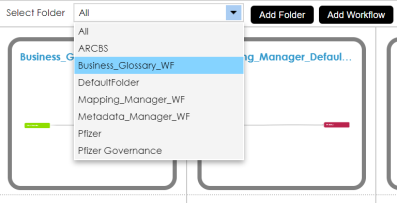
- On the Workflow Manager page, select a folder.
All the workflows in the folder appears. - Hover over a workflow and click
 .
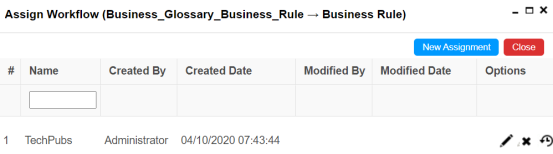
. - Click New Assignment.
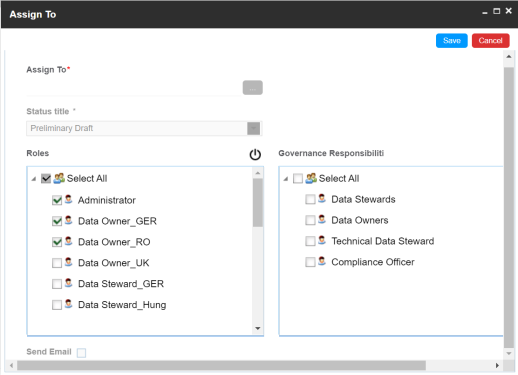
- In Assign To field, click
 .
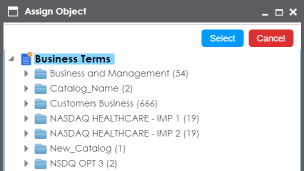
. - Select a catalog and click Select.
- Click Yes to override the existing default workflow.
- Select an appropriate Fallback/New Status.
- Click Next.
- Enter relevant comments, and click
 .
. - Click Save.
The Assign Workflow page appears.
The Assign To page appears.
The Assign Object page appears.
A warning message appears.
The Workflow Re-assignment page appears displaying the Current Object Status of all the business terms in the selected catalog and gives you option to select the Fallback/New Status of the business terms.
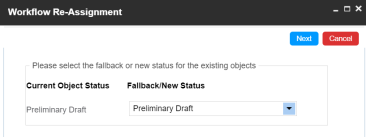
For example, if you select Preliminary Draft then the new status of business terms is set to Preliminary Draft.
The Comments page appear.
The Assign To page re-appears with Assign To field filled.
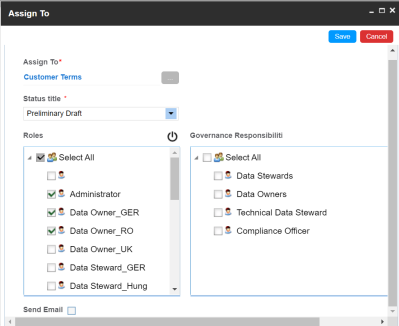
You can update roles and roles group assigned to the new fall back stage and select Send Email check box to send email notifications about the assignment. These notifications are sent from administrator's email ID. For more information on configuring administrator's email ID, refer to the Configuring Email Settings topic.
The workflow is assigned to the selected catalog in the Business Glossary Manager and it applies to all the business terms under the catalog.
Once the workflow is assigned successfully to a business term in business glossary manager, users who are part of the assigned roles will get work queue notifications. For more information on workflow execution via work queue notifications, refer to the Executing Workflows for Business Terms via the Workflow Queue topic.